1
Setting up a Default Character
Oliver edited this page 2026-05-06 16:37:35 -06:00
When playing TTRPGs, you'll often have characters that share the same groups of attributes, this can be very tedious if you find that you're making the same things over and over again.
Step 1: Create the Attributes
In the Items  sidebar tab of Foundry:
- Click "Create Item"
- Enter a name
- Change the "Type" to "Attribute"
- (Optional) Choose a folder to put the attribute in
- Click "Create Item"
- Edit the attribute for how you want it
- Repeat for all attributes you want
This will open the Attribute editing form, which looks like this:
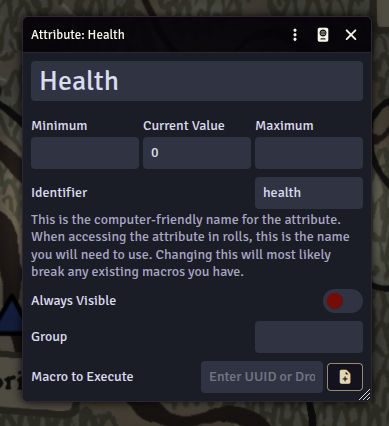
The important parts of this sheet are:
| Label | Description |
| Minimum |
The smallest value that the "Current Value" can be. If this
is left empty and there is a "Maximum Value", the minimum will
be inferred to be 0
|
| Current Value | The value of the attribute, this is the primary part of attributes that is editable throughout the system. If there is a minimum or a maximum, this value will be forcefully kept between those two numbers. |
| Maximum | The largest value that the "Current Value" can be. |
| Identifier | This is how you will access this attribute in rolls from chat or macros. This defaults to a modified version of the name you created the attribute with. |
| Always Visible | This is used to determine if the attribute shows up above the list of tabs on the actor sheet, or in the "Attributes" tab of the actor sheet. |
| Group | Only visible when "Always Visible" is off. This is used to categorize multiple attributes to make the tab easier to read. |
| Macro to Execute |
This is a UUID of the Macro that you want to have linked to in
the actor sheet to run with a single click.
Additional information about how to add automation to attributes be learned about on the wiki page: Attribute and Item Automation |
Step 2: Create The Actor
In the Actors  sidebar tab of Foundry:
- Click "Create Actor"
- Swap back to the Items sidebar tab
- Drag and drop all of your desired attributes on to the actor sheet
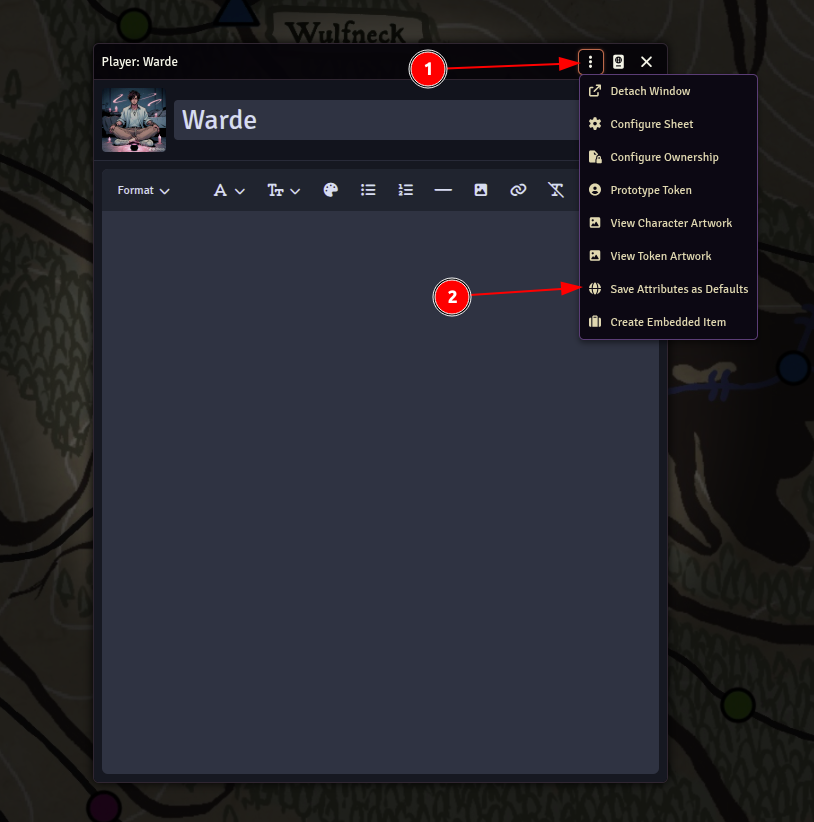
- (Optional) In the header of the actor sheet, click the three dot menu (1), and then select "Save Attributes as Defaults"(2), this will save all of the attributes on the actor to be created on brand new actors as well.
- Go back to the Actors sidebar tab and create a new actor.
If you didn't save the attributes as defaults, you can still add the attributes to new actors by dragging and dropping the same item onto the new actor!